
Application documents
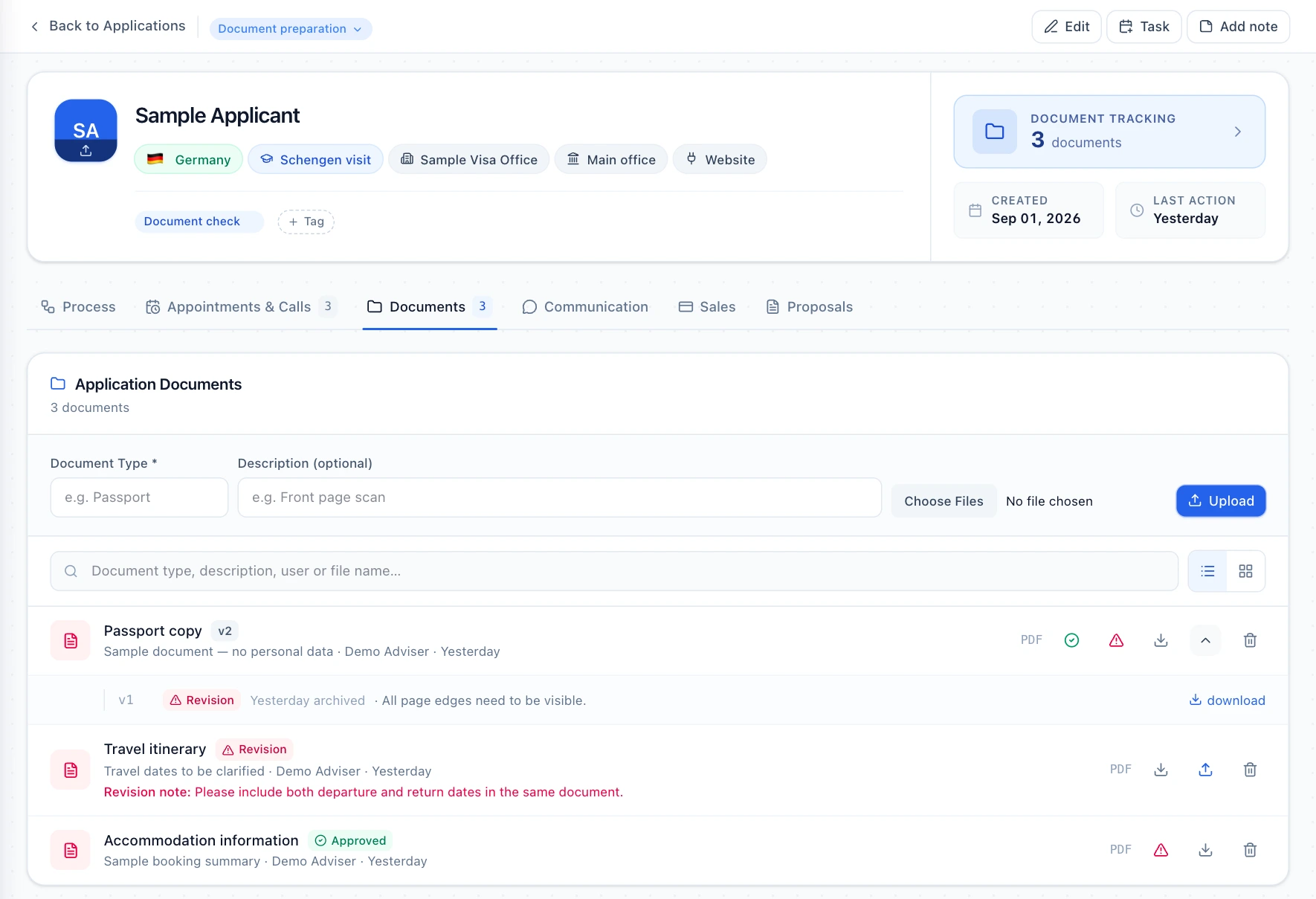
Know which document is outstanding and which version was reviewed
When different versions of a document circulate through email and messages, the team can lose track of which file needs review. iyely Visa connects the document to its application and keeps uploading, review, revision and previous versions in one workflow.
The review outcome depends on an adviser’s assessment. Uploading a file does not automatically establish that its contents are correct or sufficient for the relevant authority.
Manage documents through a clear lifecycle
Define the required document
Use document types and application requirements to establish the team's checklist. Configured nationality and destination-country filters help prepare the list for a new application.
Upload to the correct entry
Attach the file to the relevant document entry, through an adviser or the client portal. Track its uploaded status without treating the upload as an approval.
Review and give actionable feedback
An adviser approves the document or requests a revision. A revision needs an explanation that tells the client what should be corrected.
Review the new version again
Distinguish the re-uploaded file from its previous history. Assess the current file rather than automatically inheriting the decision made on an earlier version.
Plan daily reviews around visible work
Treat files awaiting review and applications awaiting a revision as different queues. The next action in the first is with the adviser; the second may be waiting for the client. Keeping that distinction clear during handovers can help avoid unnecessary repeat checks.
- Which application and document type are being reviewed?
- Which version is current, and what was the earlier decision?
- Does the revision note explain the action the client needs to take?
Understand the scope and plan limits
- Document storage is subject to plan limits; include your file volume when comparing prices.
- Document access follows application and branch permissions. Portal users upload to entries prepared by the office; they do not create their own checklist types.
- OCR, automatic translation, electronic signatures, official document-validity decisions and scheduled reminders for every missing document are not features offered by this page.
Frequently asked questions
Are uploaded documents approved automatically?
No. Uploading and adviser review are separate steps. An adviser assesses the file and records approval or a revision request with an explanation.
Can we see previous file versions?
When an existing document is uploaded again, the previous file is archived as a version. Authorised team members can review its history while keeping earlier decisions separate from the current file's status.
Can the client upload a document?
The client portal supports uploading and re-uploading to document entries that the office prepared for the client's application. See the portal page for its access and sign-in scope.
What does a revision request communicate?
The adviser must provide a reason for revision. The product includes a notification flow associated with that decision; actual email delivery depends on the environment's configuration. Write the note so that the required correction is clear.
Evaluate it with your office workflow
Try an initial upload, revision request and re-upload using a sample file. Check that your team can identify the current version.